Lesson Studio is an AI lesson slides generator that starts where your planning already is. It reads the plan you wrote against your exam specification and builds the slide deck, a three-level worksheet with a mark scheme, and teacher notes, all pitched at the same objectives. Edit any of it in your browser, then download it for PowerPoint.
Lesson Studio is part of the Super plan, coming soon. Plan your lessons on Pro today and they are ready to build from when Super opens.
A deck is only useful if it teaches what your exam board will ask about.
Type a topic into a general AI PowerPoint generator and you get slides about the topic: broadly right, generically pitched, and written to nobody's specification. You then spend the time you hoped to save checking every slide against what your pupils will actually be examined on, rewriting the objectives in your exam board's terms, and building the practice questions yourself.
Lesson Studio works the other way round. It starts from a lesson plan you have already shaped in the lesson planner, tagged with the points of your own specification that the lesson covers. The slides, the worksheet and the teacher notes are all built from that one plan, so the objectives on the first slide, the questions on the worksheet and the misconceptions in your notes all point at the same specification content.
You choose what the lesson covers. Everything Lesson Studio makes is built to it.
Real screenshots from a Year 10 Computer Science lesson.
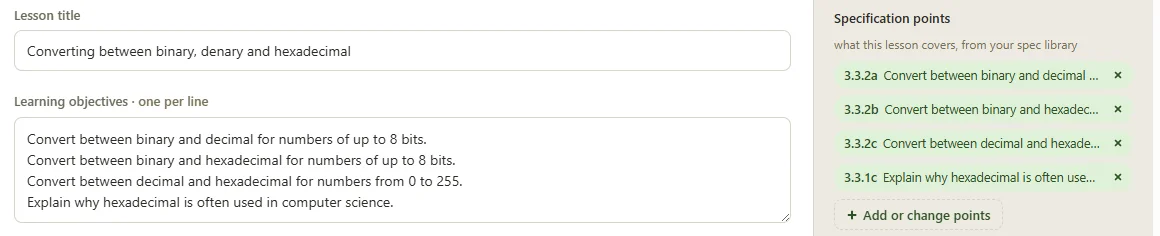
Plan the lesson as you normally would, from a slot in your timetable or as a one-off. Tick the specification points it covers and the AI drafts the objectives and the five lesson phases from them, in British English, for the year group and the time you actually have.
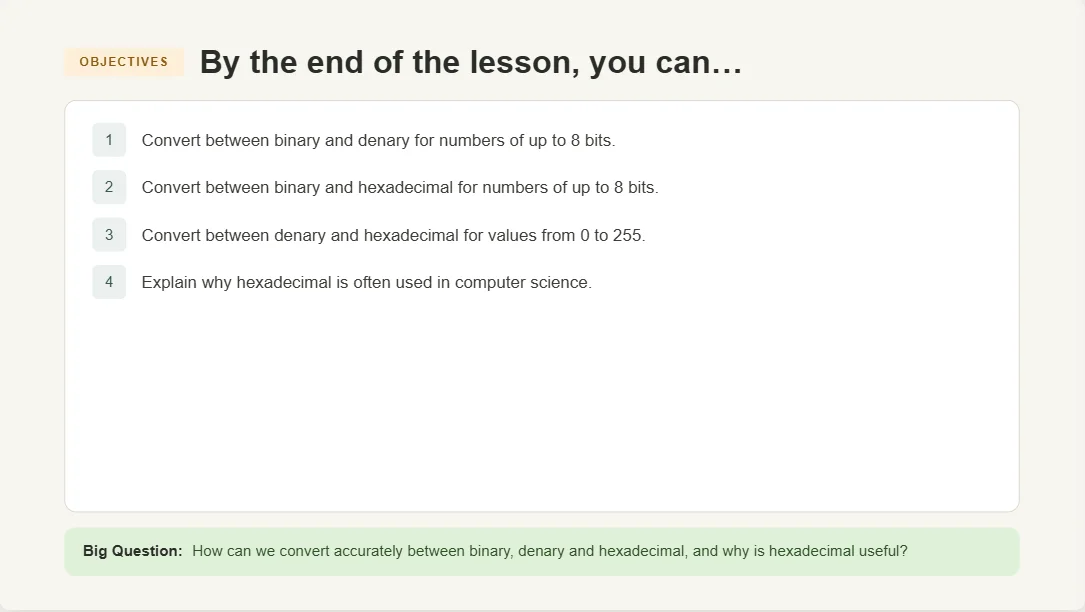
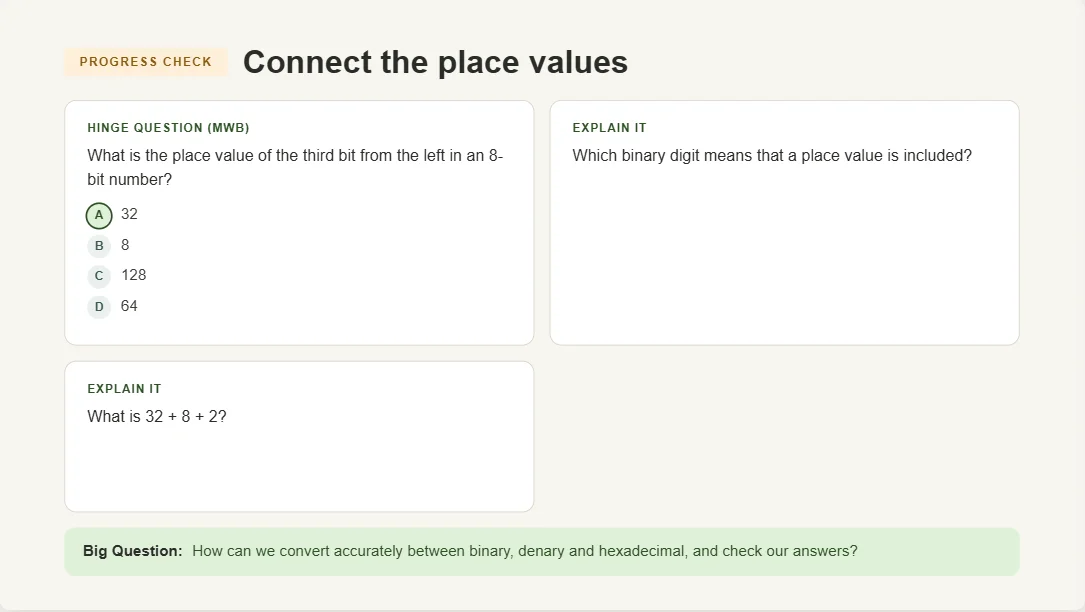
One click builds the slide deck: a title slide, the objectives, retrieval questions, new content in small steps, worked examples, guided practice and progress checks, with the answers in the speaker notes. The lesson's Big Question runs along the foot of every content slide, so pupils always know where the lesson is heading.
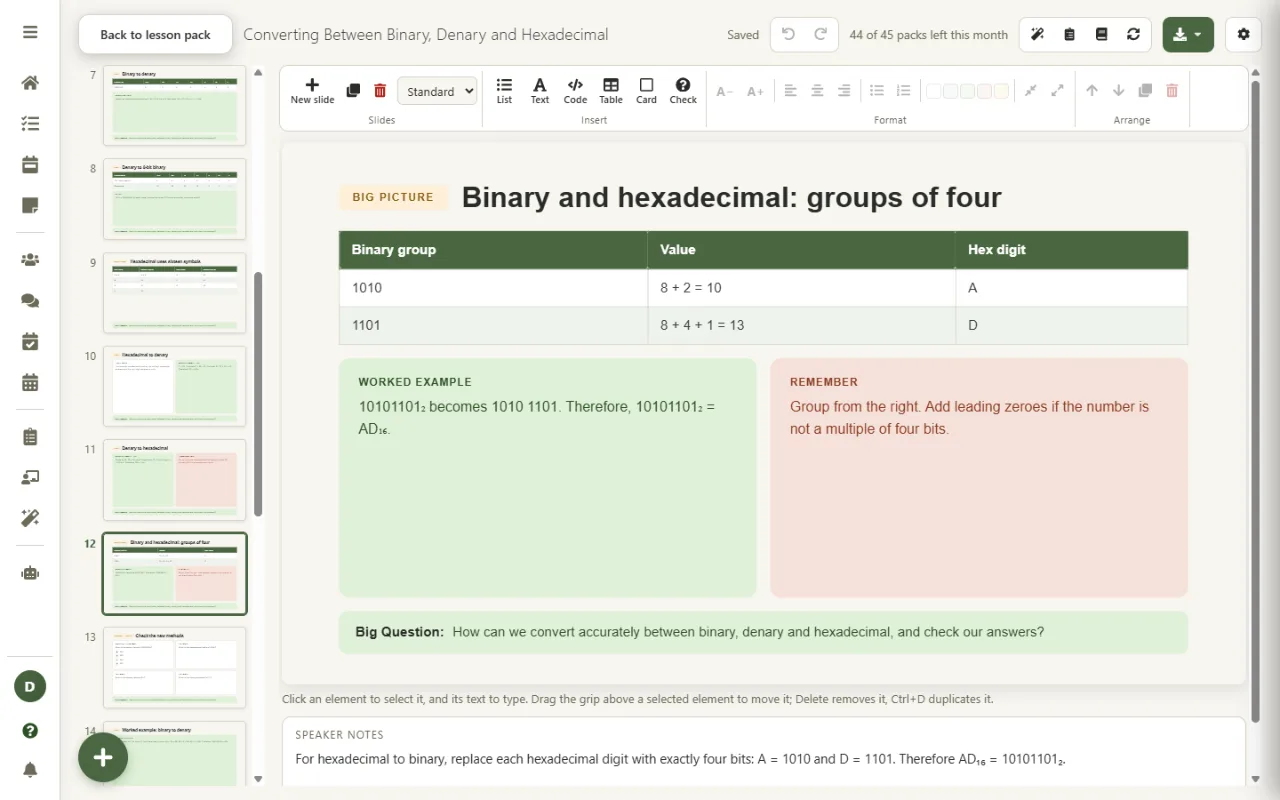
Click any text to change it. Add a list, table, code block, card or quick check from the ribbon, move blocks, duplicate slides and undo anything. Not happy with one slide? Ask the AI to rewrite just that slide, in your words.
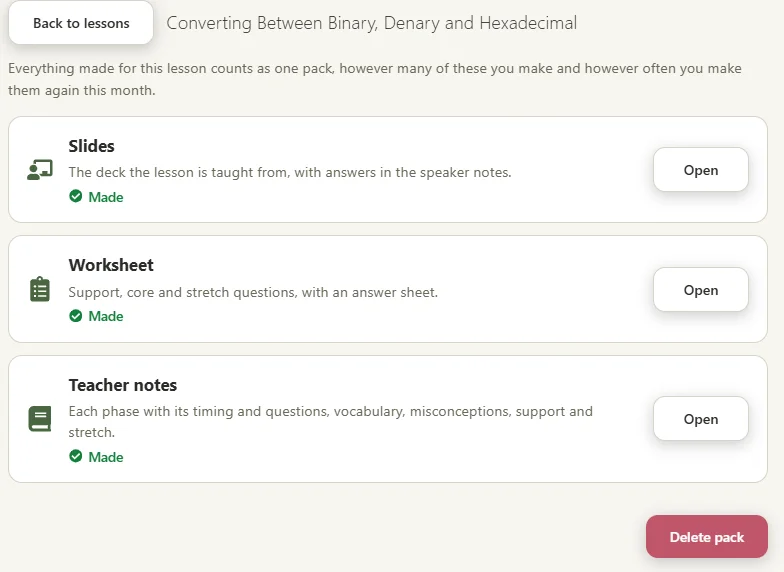
The worksheet and teacher notes sit beside the deck in the same lesson pack. Download the slides for PowerPoint or as OpenDocument, print the worksheet with its answer sheet, and if you are off, set the whole pack as cover work in one click.
Generated for Computer Science, Biology and English, unedited.
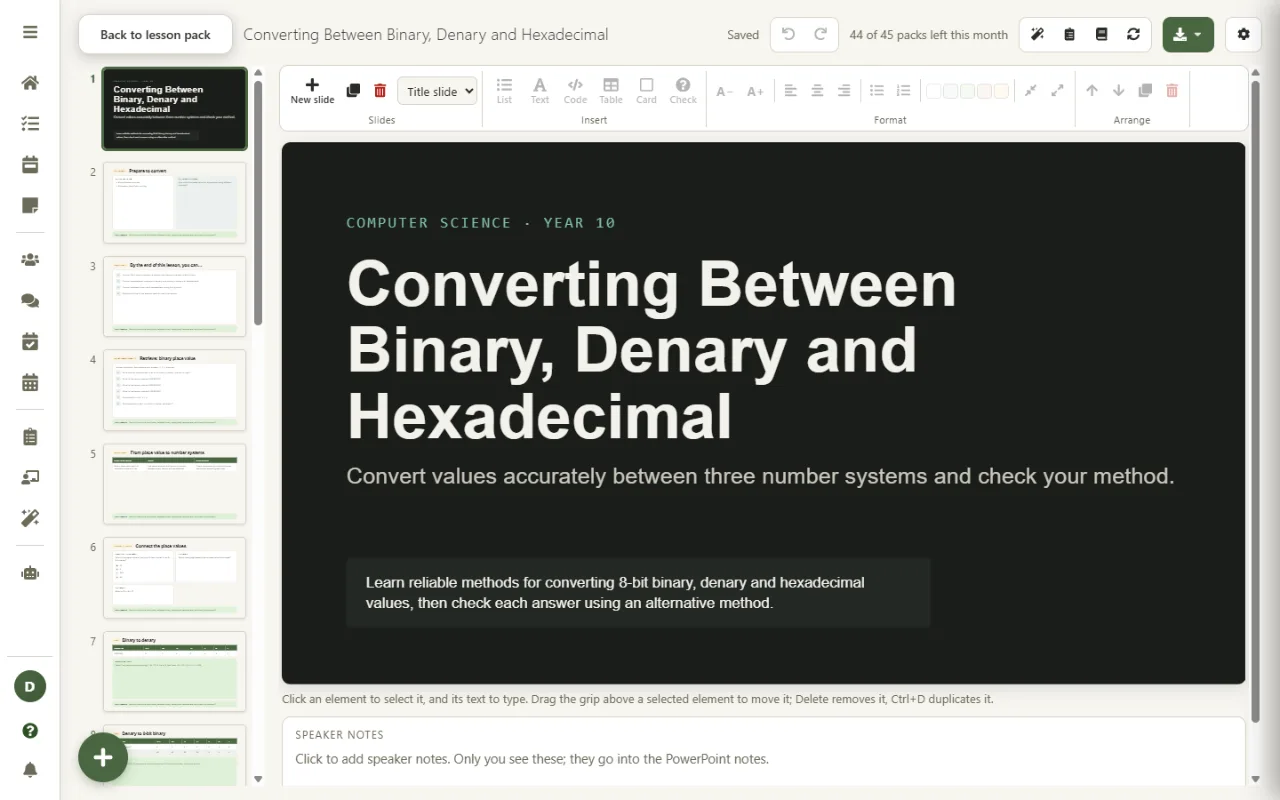
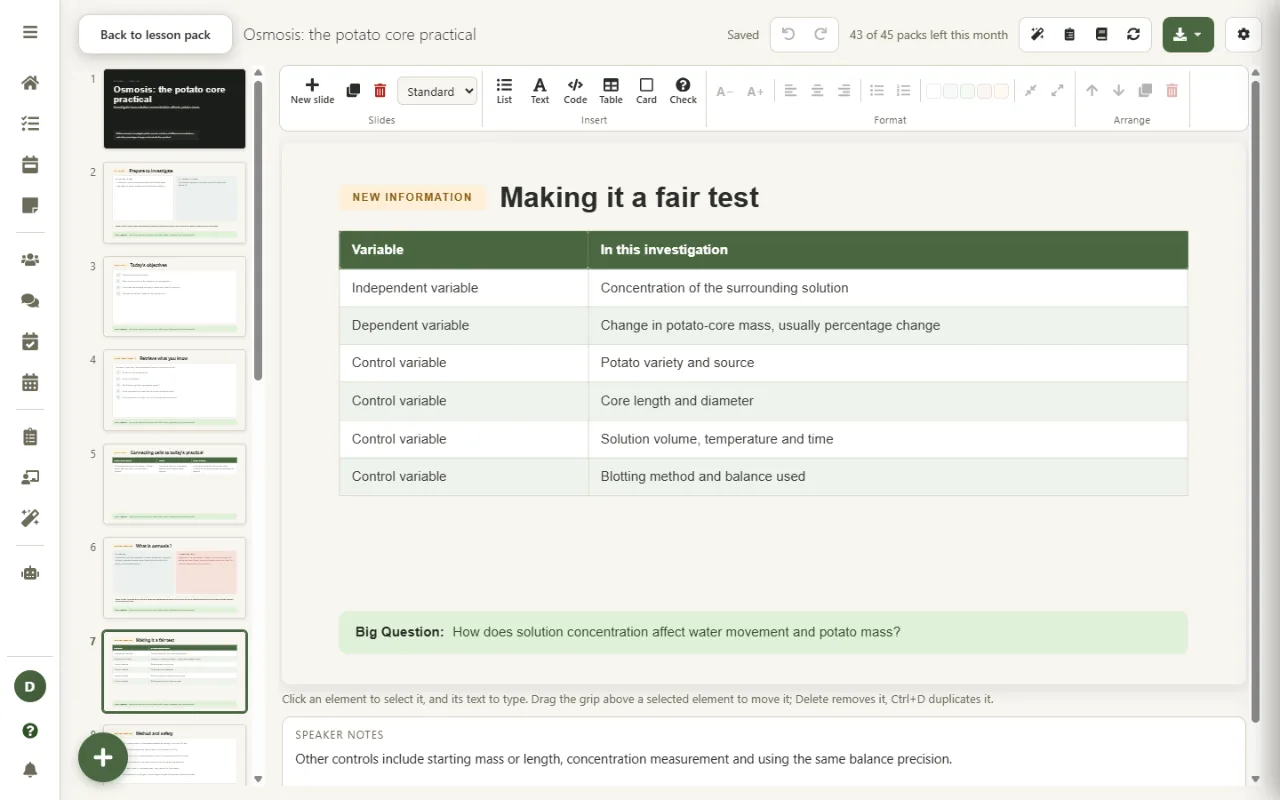
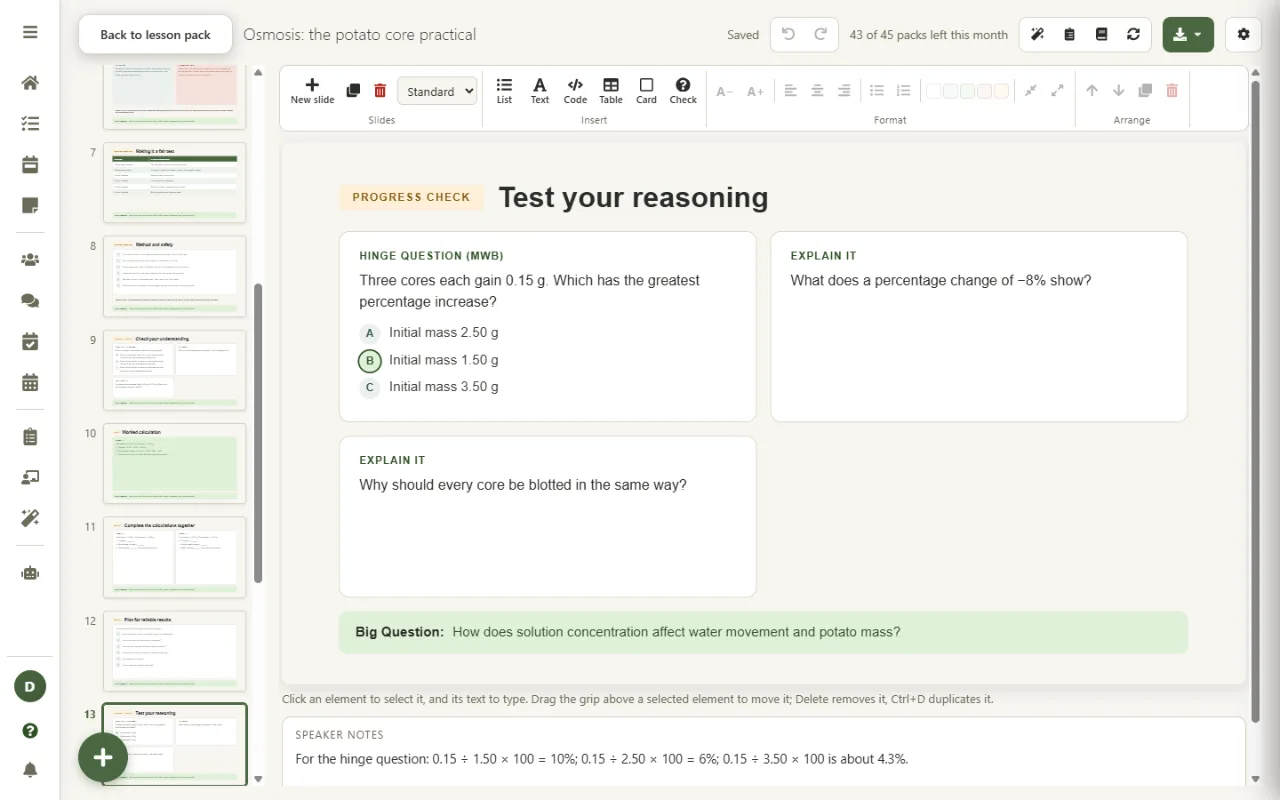
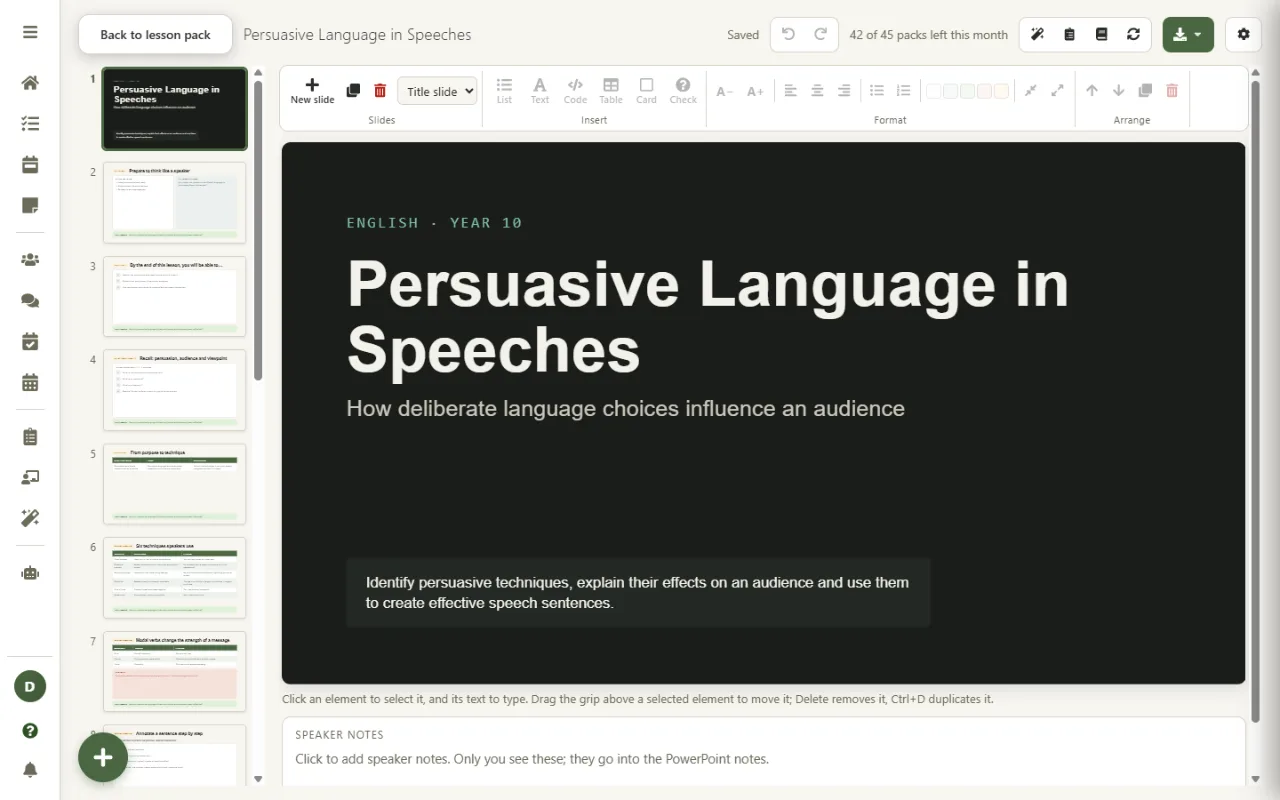
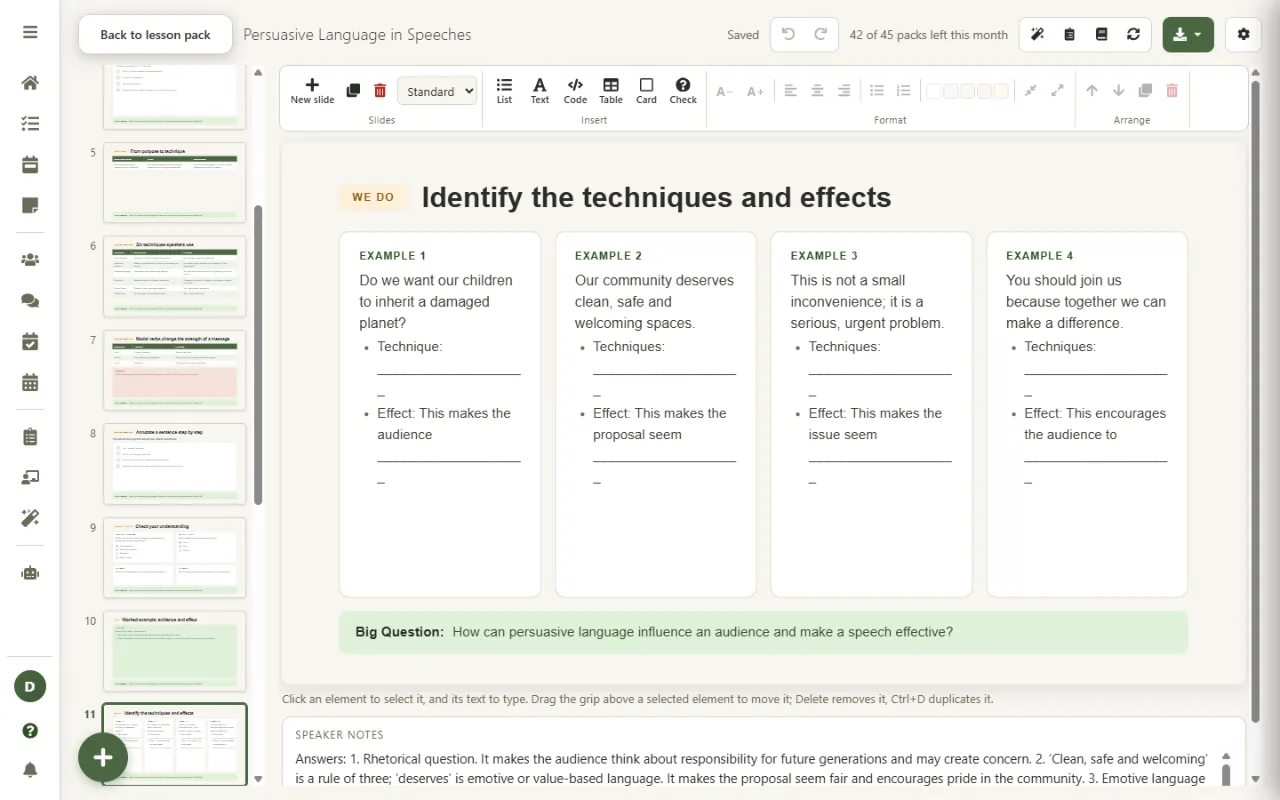
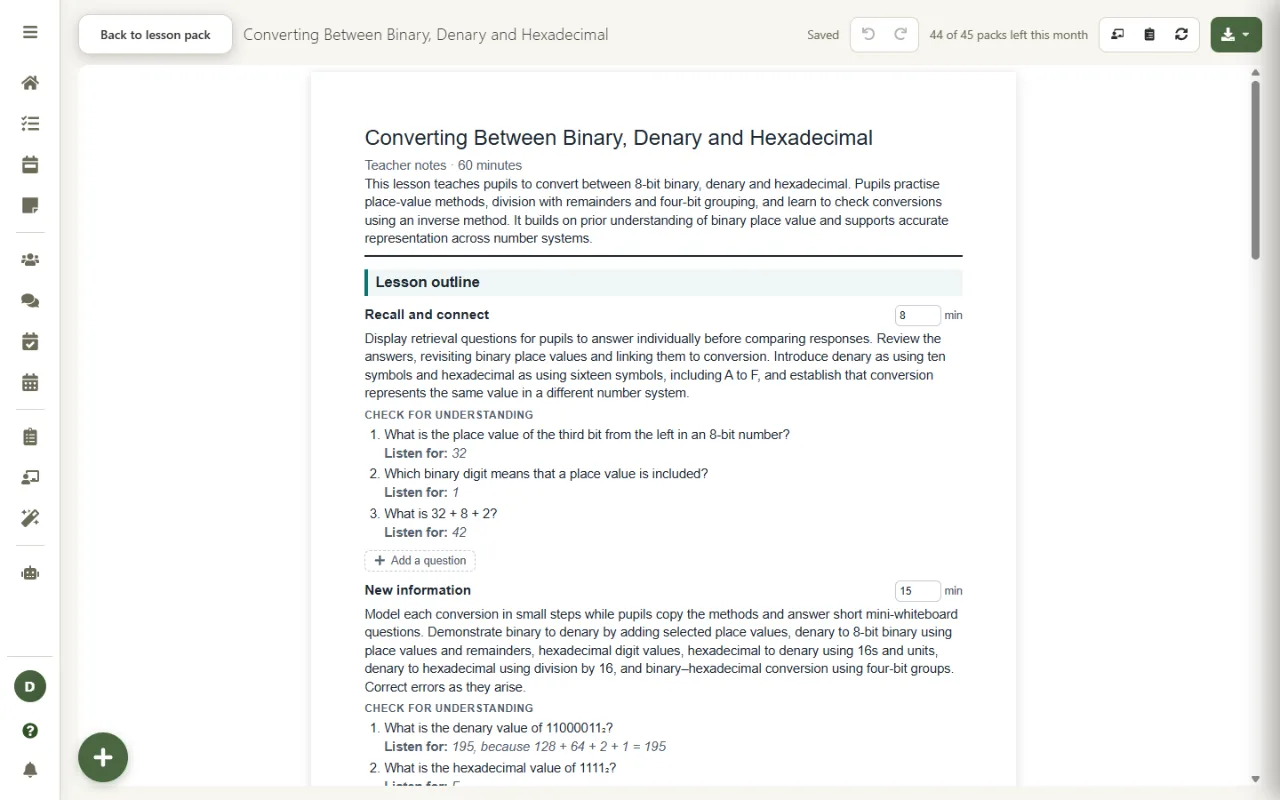
Three resources, made from one plan and edited in one place.
Objectives, retrieval, new content, worked examples, practice and progress checks, with answers in the speaker notes so they never appear on the board by accident.
Support, core and stretch sections with marks on every question and an answer sheet a non-specialist could mark from. More on the worksheet generator.
What happens in each phase, the questions to ask and the answers to listen for, key vocabulary, common misconceptions, and support and stretch ideas.
A slide editor with a ribbon, undo, and an AI rewrite for one slide at a time. Worksheets and notes are editable too, and everything saves as you go.
Slides as PowerPoint or OpenDocument; worksheets, answer sheets and notes as Word or OpenDocument; or save straight to OneDrive or Google Drive.
Off tomorrow? Set the lesson as cover from its pack and the supervisor gets the notes, the worksheet and the answers. See the cover work generator.
Lesson Studio builds from the text of your lesson plan and the specification points you ticked. Pupil names are replaced before anything is sent, and we still ask you to keep pupils out of lesson plans. Your specification PDF never leaves your device: only the text of the pages you choose is read, and only the points you keep are saved, privately to your account.
Decks, worksheets and notes are saved encrypted in your account, and your data is never used to train AI models. Exactly what is sent, and when, is listed on our AI & Data transparency page.
The rest of Lesson Studio, and the planning it builds on.
Lesson Studio is part of the Super plan, coming soon. Start planning on Teacher Task Manager today and your lessons are ready for it.